Agents
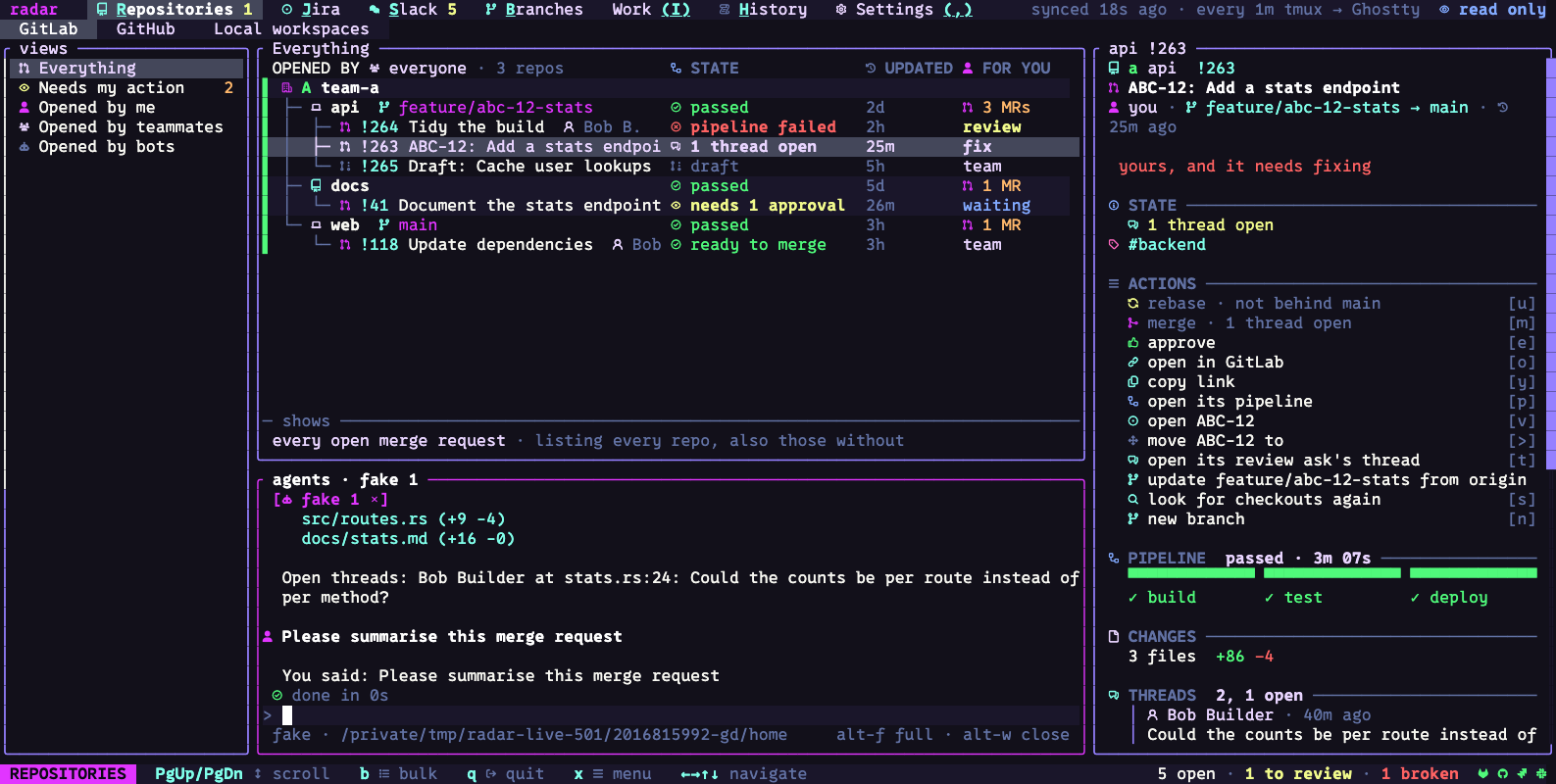
Radar runs coding-agent conversations in a dock below the middle pane of supported list screens and Settings. Work and item pages do not draw the dock. You can keep several sessions open while inspecting repositories, tickets and discussions, and give a session the selected item’s connected context. After following a conversation in Slack, use ask an agent about it… to turn that context into a task.
Set up a provider
Open Settings → Agents, or run radar setup agents. Each provider’s row shows installation,
version and sign-in status. Select it to see the install/sign-in instructions and its
supported capabilities; the setup sheet offers the appropriate actions and copyable commands.
| Provider | What radar uses |
|---|---|
| Claude Agent | The claude program and its login, through the Claude Agent SDK sidecar. |
| Codex | The codex program and its login, through its App Server. |
| Copilot | The copilot program and its login, through the Copilot SDK. |
| Another command | A program you add in Settings → Agents → add a command, running its own terminal screen in a dock tab. |
Choose the default provider in Settings → Agents. The working folder determines where the provider looks for project instructions, agents and skills. For global defaults and repository overrides, see where reviews and work are saved.
Start and follow a session
ctrl-t starts a session, and backtick (`) shows the dock. Type your request in the
composer and press ⏎. Each conversation has its own tab. A message sent during a turn
steers the current work or queues for the next turn, depending on the provider’s capabilities.
Drag the dock’s top edge to resize it, or use alt-f to give it the whole middle column.
Item pages use that space for their content; return to a supported list screen to see the dock.
The transcript shows your messages, the agent’s answers, tool calls, permission requests and
questions. Open a tool call to inspect it; alt-o folds or opens the latest one. The activity
line shows the current work and elapsed time, then the turn’s result and any reported token
usage. A tab’s activity or attention mark helps you find sessions that are running, waiting
for input, or finished while you were elsewhere.
When a session needs attention out of sight, the status line shows a chip. Click it or press
backtick to reach the waiting session. Desktop notifications are optional and off by default.
esc declines a pending question, stops a running turn, or returns focus to the lists when
neither is waiting. Use the dock keys for the full controls.
Pick an agent, model, skill or conversation
The dock’s pickers use the selected provider’s capabilities. An unavailable feature is reported rather than treated as a successful selection.
| Picker | How to open it | What the selection does |
|---|---|---|
| Agent | alt-a |
Chooses a named agent for new sessions of that provider. The provider itself is chosen in Settings. |
| Model | alt-m |
Chooses the model for new sessions; a running session keeps its existing model. |
| Skill | alt-k |
Puts the skill’s request in the composer so you can review and send it. |
| Session | alt-s |
Opens a conversation listed by the provider. |
Type / in the composer for commands offered by the current session. Choose a row with the
arrow keys; tab completes it and ⏎ runs it. Radar also offers /close, and /resume on a
detached session. Provider commands depend on that provider and the project’s configuration.
An arbitrary terminal command uses its own screen, questions and permissions. Radar does not turn its output into this structured transcript, inject the shared MCP connection, or restore the ended terminal after restart. Choose agents and answer prompts inside that terminal; a brief sent to it is typed without pressing Enter so you can submit it yourself.
Approvals
When an integrated agent sends a permission request, the dock shows the command, path, diff, address or tool details it supplied. Choose from the actions that provider supports:
| Choice | Result |
|---|---|
| approve once | Allow this request. |
| approve for session | Allow this kind of request for the remainder of the session. |
| always allow | Add a standing rule for matching requests. |
| deny | Refuse the request and tell the agent. |
| view diff | Inspect a supplied change before deciding. |
Settings → Agents → always allow and always deny hold radar’s standing rules. A deny wins over an allow. The provider’s own configuration also applies; an action it already allows may not ask radar. Agent questions appear separately, with choices or a text answer as provided by the agent.
Local-review sessions use a specific policy: reading the worktree and permitted inspection commands can proceed, file writes are denied, and other commands need individual approval. The local-review guide explains the policy and the option to finish entirely by inspection.
Send an item to an agent
On a supported GitLab merge request, ticket, Slack message or local Git item, open x and
find With an agent. Ask an agent about it… (A) starts a conversation with the item described.
Add your question in the dock. The brief includes the connected work radar can currently
read and names missing information; the agent can request further cached sections through
MCP.
Review it locally… (i on an open GitLab merge request) prepares a clean worktree at its head
commit and starts the review recipe. On a Slack thread linking a change, v starts the same
journey. The resulting Markdown review remains local, with its reviewed commit recorded.
See the review workflow and result.
GitHub pull requests are available to the MCP context tools and can be reviewed from a
linked Slack thread. Their page does not currently provide these direct A and i actions.
Resume after closing radar
Integrated session tabs return after a restart, initially detached. Radar asks the provider
for its transcript when you first look at the tab, send a message, or use alt-r or
/resume. This requires the provider and its saved conversation to remain available.
An unanswered request from before shutdown returns muted, marked radar closed before this was answered, without active approval buttons. It does not count as a current request. Send a message to continue; a fresh request from the provider can then be answered. If resuming fails, the dock shows the reason and lets you retry. A terminal-command tab must be started again because its process ended with radar.
Configure new sessions and recipes
Settings → Agents groups the provider status, new-session defaults, recipes/review folders and notifications on one page. Defaults include the provider/model, working and permitted folders, shared skill folders, whether the provider loads its own project configuration, standing permission rules and local-only operation. The settings heading says whether you are changing the global defaults or the selected workspace’s defaults.
The ask recipe supplies an item’s opening task; review-mr supplies the local-review task. Settings shows each recipe’s version and whether radar is using the built-in or your override. Select a recipe to choose its agent and skills. The recipes-folder action can copy the built-ins into your folder and open them for editing. A malformed override falls back to the built-in and displays the reason. The recipe format describes the fields; a recipe does not loosen the review permission policy.
Continue with Connected context and local reviews to connect external sessions, enable Slack review intake, and choose where the work and review files live. For the rest of the configuration pages, see Settings.