5. Settings and the config file
Settings
Press ,. Settings is a tree on the left, the section in the middle and an explanation of
the selected row on the right. Everything saves as you go.
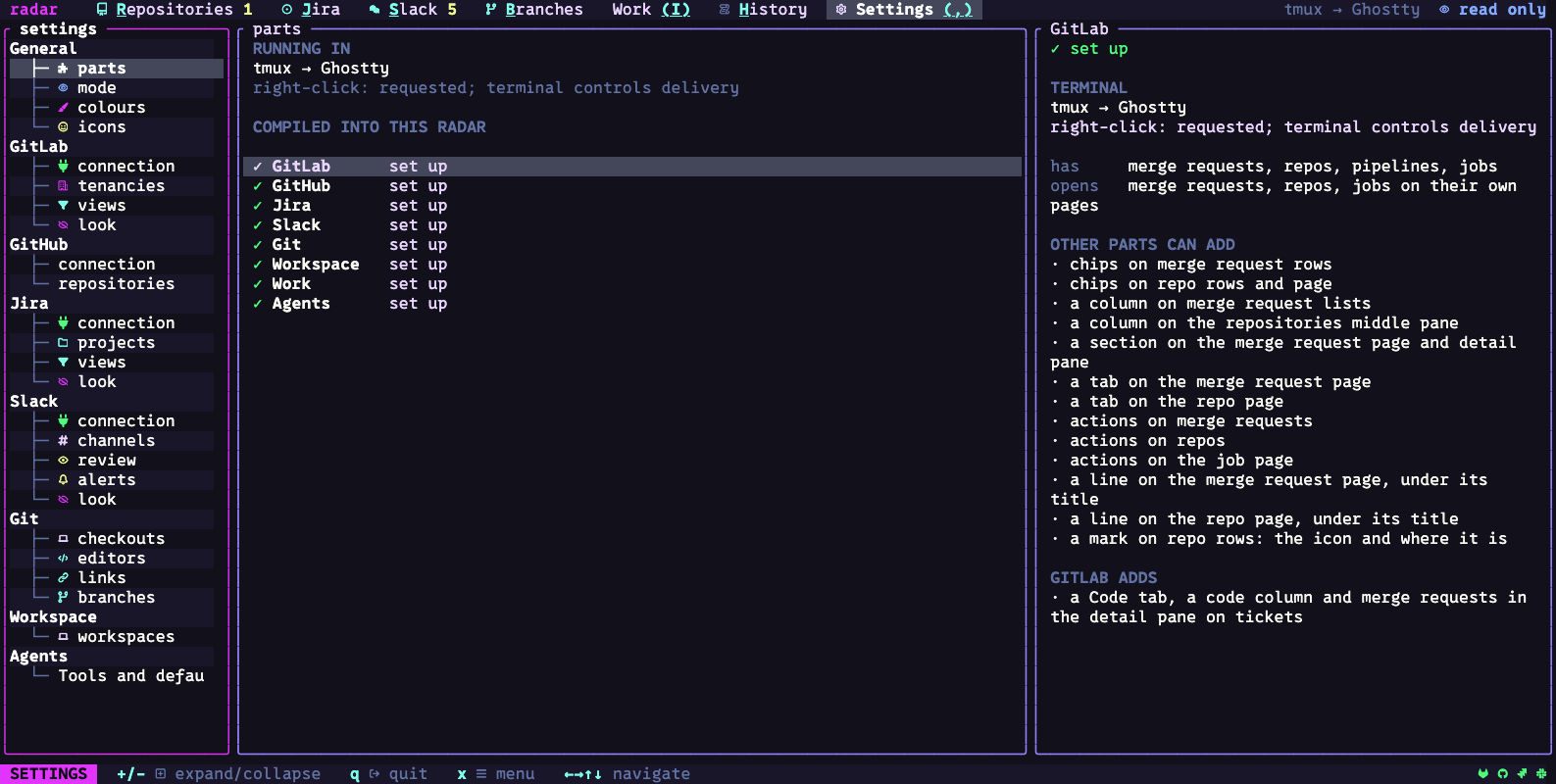
The Settings guide describes all 27 sections, including provider defaults, Git worktree templates and repository-specific folders. The right pane names each row’s config key and accepted values. Invalid values stay in the editor with a reason.
The config file
Run radar config path to find your TOML file and radar config show to print its
configuration. Settings saves completed changes; restart radar after hand-editing the
file. The config reference gives the location, environment
overrides and an example. Treat the output as sensitive if you store tokens in the file.
Colours
Choose the palette, motion and icon pack in General / appearance. Use General / colours for individual colour slots, terminal colour depth, the splash, hyperlinks, images and pointer. Slot overrides survive a palette change. Appearance and colour settings lists the choices.
Icons
If icons appear as empty boxes, choose unicode in General / appearance, or install
a Nerd Font. General / icons changes individual glyphs; r restores the pack’s glyph.
The Icons reference explains custom packs and the radar icons commands.
The start line
Each start shows a new line under the mark: a joke, a tip, or something radar already holds for you (“3 merge requests wait for your review”). radar does not ask a service for a line.
[start_lines]
show = true                       # false: no line at all
tips = true                       # false: no tips
off = ["time"]                    # groups not shown
mine = ["Coffee first."]          # your own lines
weights = { mine = 30 }           # how often each group is drawn
The lines and their groups are listed in the file radar ships
(start-lines.toml). Your own file,
~/.config/radar/start-lines.toml, may add lines in the same form.
Refresh and idle
Services refresh while radar is active; connection settings expose configurable intervals
where supported. By default, radar pauses after 30 idle minutes; input resumes it. Enabled
automatic review intake or active background work can keep refreshing through idle time.
Change the timeout in Settings, General, mode (pause if idle). z pauses by hand and
stays paused until you press z again. Each service guide explains its refresh behavior.