2. Getting around
The screen
- Top bar. One tab per screen: Repositories, Jira, Slack, Branches, Work, History, Settings. A screen’s key is the letter underlined in its name. On the right radar shows its mode and when it last synced.
- Three panes. Most screens have views on the left, the items in the middle, and the
detail of the selected item on the right.
⏎opens a detail page where the item has one; some local rows open a folder in your editor. - Status line. The bottom line shows the keys that work where you are. Every key on it can be clicked.
- Agent dock. Supported list screens and Settings show sessions beneath the middle pane. Work and item pages omit the dock (see Agents).
The key model
radar follows three rules, so you can guess keys.
- A key is underlined inside its word: the
bin b̲ulk, theqin q̲uit. A key that is a symbol (↑↓⏎esc) comes before its word. - The same key does the same thing in the same kind of place.
rrefreshes a list or an open page in every part.oopens the item in its service.ycopies its link.cwrites a comment where there is a discussion. Keys can differ between kinds of place. - Everything can be reached from the menu.
x(or?) lists every key for where you are. Choose a row and radar presses its key.
Every key is listed in Keys.
Menus
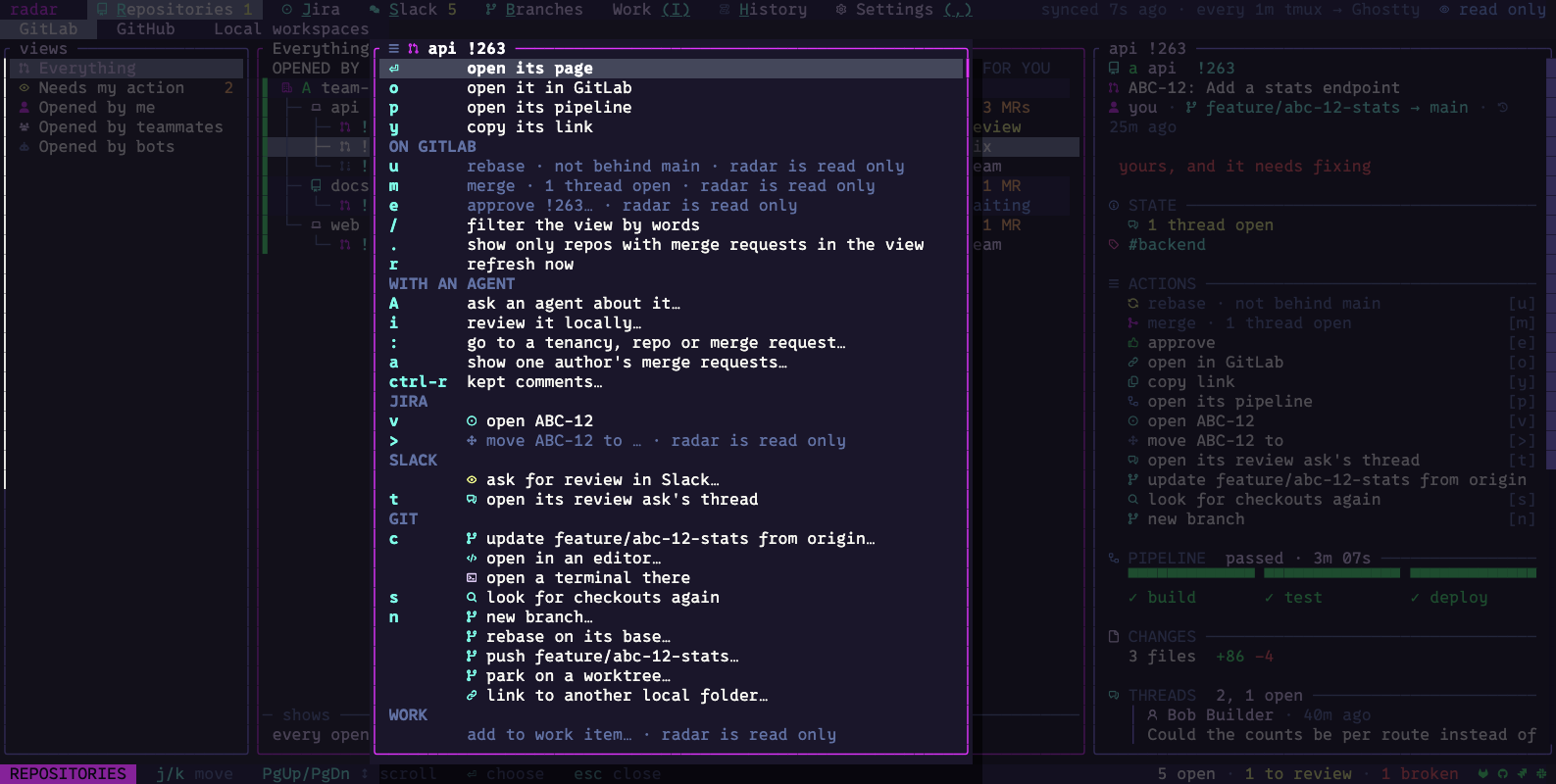
Press x and a menu opens beside the selection. It lists what you can do here, with the
key beside each row. A row that cannot be done now stays in the list, muted, with the reason
(for example “radar is read only” or “needs 1 approval”).
Pages
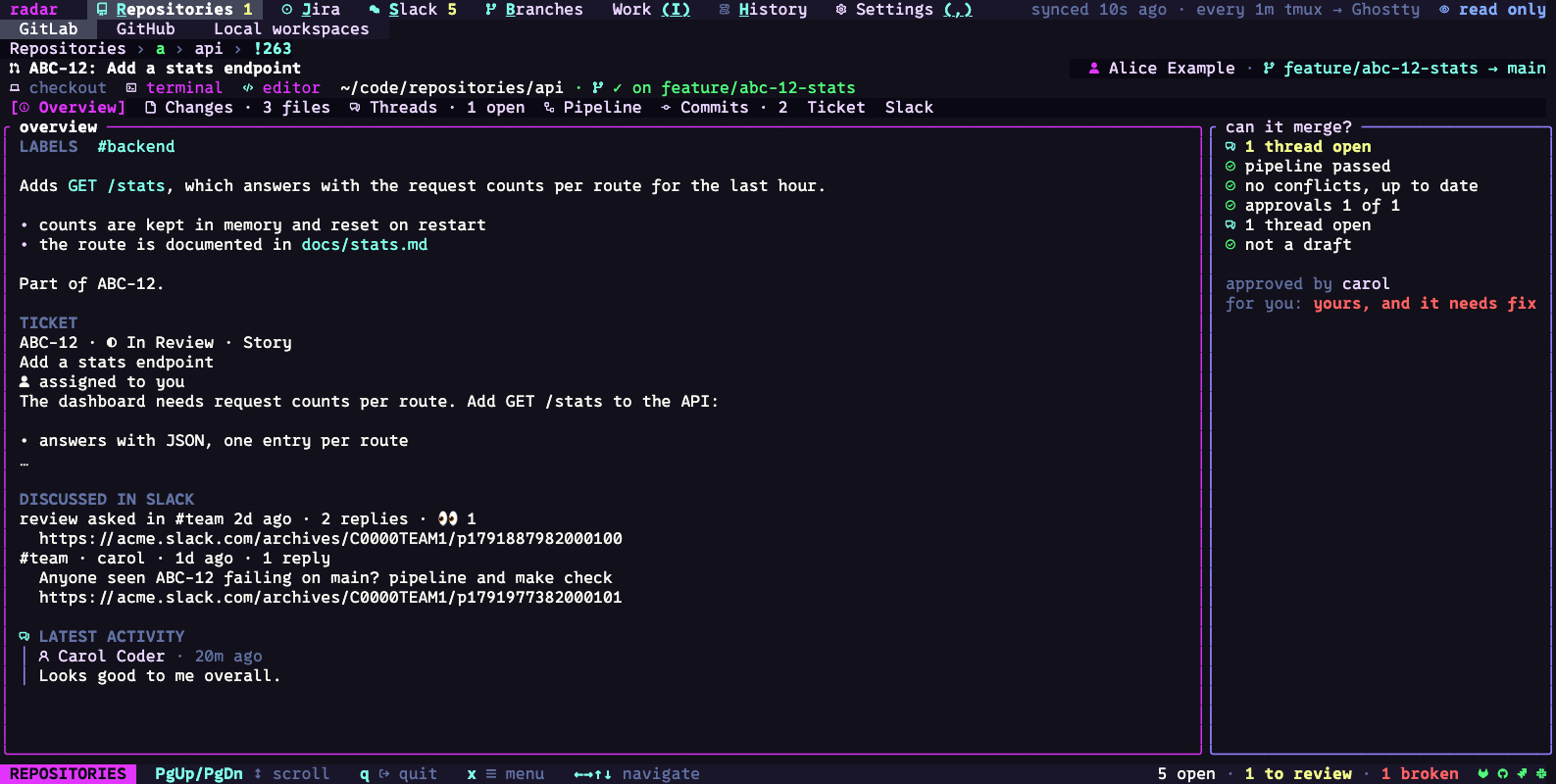
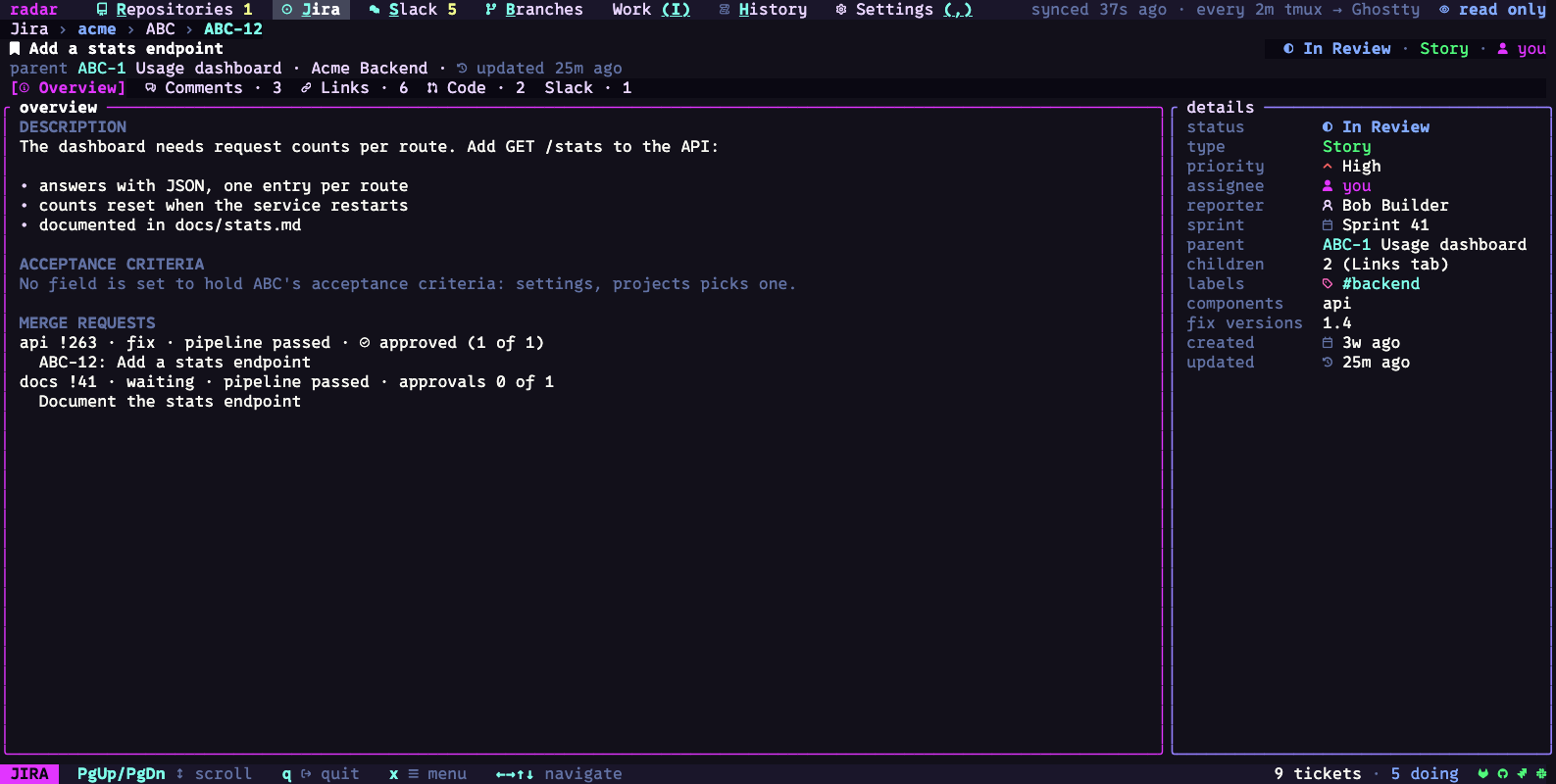
⏎ on a service item opens its page. A merge request has Overview, Changes,
Threads, Pipeline and Commits tabs. Linked Ticket/Tickets and Slack tabs appear when radar
has related information. [ and ] switch tabs; esc returns to the previous page or
the list with your place kept. Find a page lists every page and tab.
Finding things
Press ctrl-p while navigating to open the command palette. Type words to find a
screen, Settings section, an available action or an item radar already has cached.
Choose with ↑ / ↓ and ⏎; esc closes it. Searching does not fetch more service data.
Close a text editor or other menu first; those controls keep their own keys.
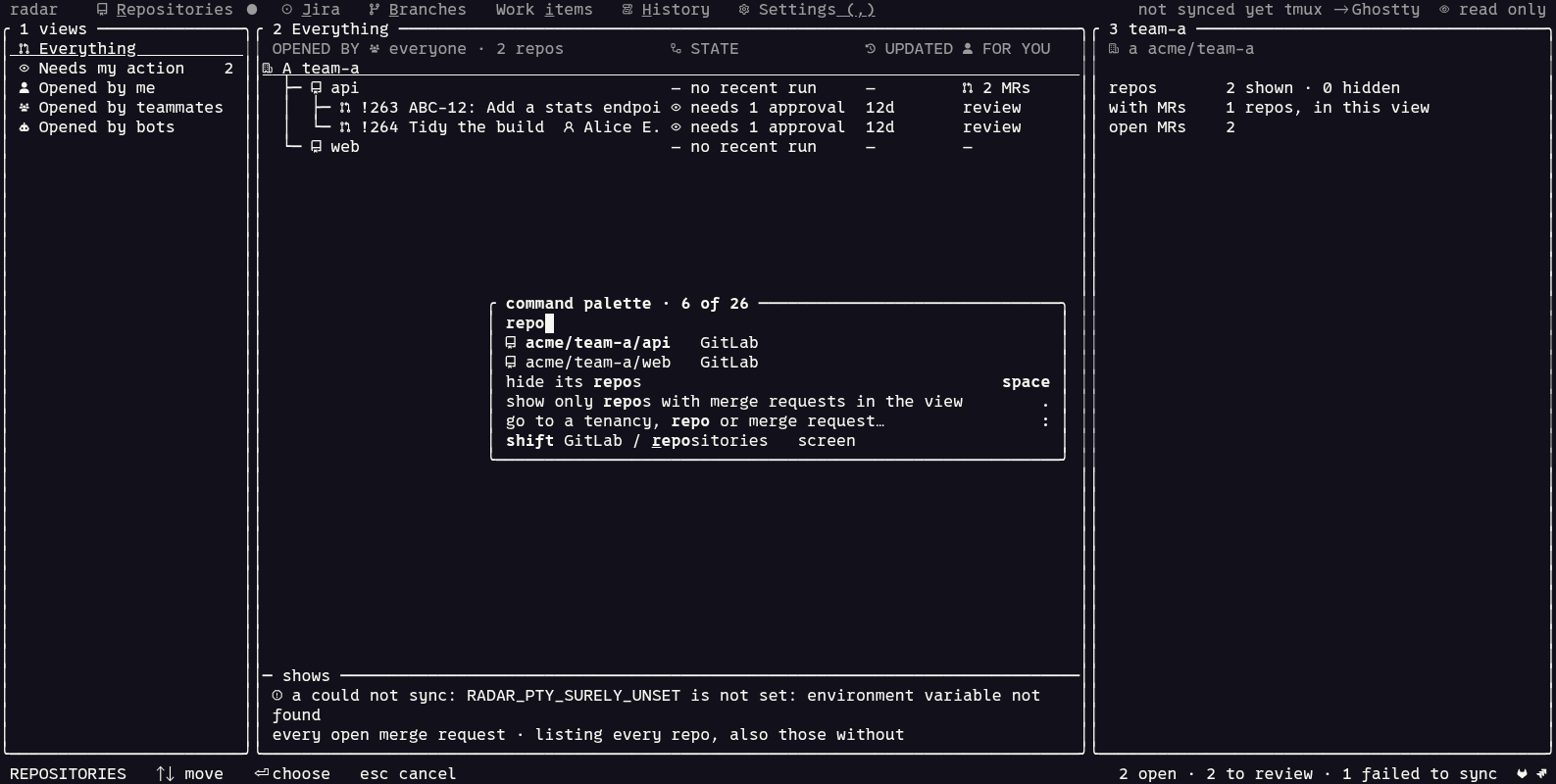
The picture uses an offline demonstration cache, so its status line reports that sync credentials are unset. The palette can still find the cached items.
/filters the list by words. In GitLab you can also write terms such asstate:mergedorlabel:bug.:goes to a group, repository or merge request in GitLab, or a ticket in Jira, by name, key or number.ashows one author’s merge requests in GitLab, or one assignee’s tickets in Jira.
Recent notices
Press ~ while navigating to read notices retained during this radar session. Select a
notice with ↑ / ↓ and scroll its detail with PgUp / PgDn. esc or ~ closes the
list. Use this when a status message disappeared before you could read it.
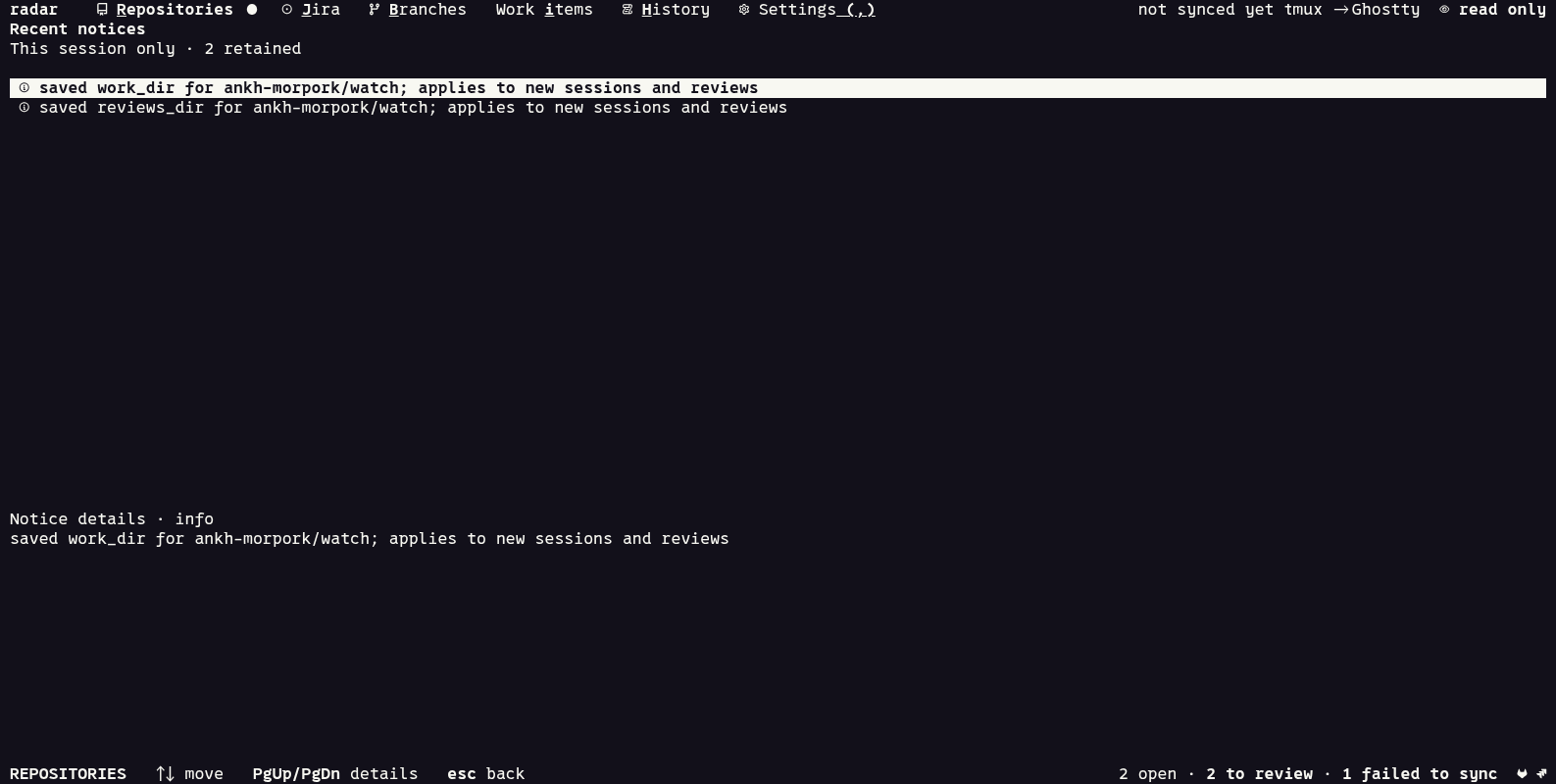
These notices disappear when radar closes. Press H for the persistent
History, which records operations and their outcomes.
The mouse
The mouse does what the keys do. What a click would act on is lit under the pointer. A click
selects, two clicks open, right-click on a row opens its x menu, and the wheel scrolls the
pane under the pointer. Right-click needs a terminal that passes right-clicks through;
radar terminal, and Settings, General, parts, show what radar detected.
Dragging selects text inside the pane it started in, and letting go copies it. The status
line says how it was copied (copied 42 characters · wl-copy, or · terminal when your
terminal’s clipboard took it). In text, a double-click selects a word, a path or a link
whole, and a triple-click a line. Keys has the rest.
Links and pictures
Links in descriptions, tickets and messages are terminal hyperlinks: Ctrl-click (Cmd-click on a Mac) opens one, in terminals that support them. Pictures in Slack threads, merge request descriptions and tickets are drawn in the terminal where it supports kitty, sixel or iTerm2 graphics; elsewhere a line names the picture and its link. Both can be set under Settings, General, colours.
Opening links and copying work on macOS, Linux (Wayland and X11), Windows under WSL2, inside
tmux and over SSH. Where radar cannot reach a browser itself (over SSH, say), it puts the
link on your clipboard through the terminal and says so on the status line. $BROWSER is
used first when set.
The mode
The top bar shows radar’s mode on the right. A click on it, or Settings, General, mode, changes it.
| Mode | What radar may send |
|---|---|
| read only | no remote writes or local Work annotations; a remote write can still show its question, but y sends nothing |
| write | additions: comments, replies, reactions, review asks, new tickets |
| edit (the default) | also changes: approve, resolve, rebase, merge, move or assign tickets |
RADAR_MODE=read-only radar (or write, edit) sets the mode for one run.
Remote write actions show a confirmation before sending; y confirms and e returns to
editing where offered. Comments and replies use the shared small editor
(keys); ctrl-r recovers retained text in GitLab, Jira and Slack.
The mode does not disable Settings or local Git changes such as checking out, creating branches and deleting worktrees. Git pushes are mode-gated: a new remote branch needs write mode, while updating an existing branch needs edit mode. Read the action’s own confirmation to see what will change.